
Published · By Henry Palma
Keep Your Dance Move Library Safe and on Every Apple Device with iCloud Sync
Your saved dance moves are worth protecting. Here's how iCloud Sync keeps your library backed up and on all your Apple devices, and how to organize it the way you train.
If you've been saving moves for a while, your library is more than a pile of videos. It's months of classes, socials and practice sessions. Clips from a workshop you can't repeat. A combo your teacher showed once. Losing that would hurt. The good news: keeping it safe and easy to reach doesn't take much work.
Why your move library deserves a backup
Phones get dropped, lost and replaced. Storage fills up and old videos get cleared out. If your moves only live in one place, one bad day can wipe them out.
A backup that runs on its own solves this. You don't have to remember to export anything. You just keep saving moves, and they're protected.
What iCloud Sync does for you
With iCloud Sync, your library is backed up and synced across your Apple devices automatically. That means:
- No manual backups. Save a move and keep going.
- Your library follows you. The same moves show up on your other Apple devices.
- Less worry. If something happens to your phone, your library isn't stuck on it.
A quick check is worth doing once: make sure you're signed in to iCloud on your devices with the same Apple ID. That's what lets them share the same library.
Switching to a new iPhone
Getting a new phone is exciting until you realize what might not come with you. Here's a simple checklist:
- Before you switch, open your library on the old phone and confirm your recent moves are there.
- Sign in with the same Apple ID on the new iPhone.
- Install the app and give it a little time to sync.
- Spot-check a few moves, like your newest saves and an old favorite.
- Only then wipe or trade in the old phone.
That last step matters. Don't erase the old device until you've confirmed your library came along.
Practicing on a bigger screen
A phone screen is fine for a quick reminder. For studying footwork, bigger is better. If you use the app on another Apple device, like an iPad, your synced library is there too.
Ideas for using a larger screen:
- Prop it up at the studio so you and your partner can both see the move.
- Use slow motion to study the details frame by frame before you try a combo.
- Run a practice list from start to finish without squinting at your phone.
Make it yours
A library you can find things in is a library you'll actually use. A few settings help you organize it the way you train.
- Custom dance styles. Add the styles you actually dance, even if they're niche or a mix.
- Custom sources. Add where moves come from, such as a specific teacher, a weekly class or a festival.
- Accent color. Pick a color you like. It's a small thing, but it makes the app feel like yours.
A simple organizing routine
Syncing keeps your moves safe. Organizing keeps them useful. Try this after each class or social:
- Save the move right away, while you still remember what it was.
- Tag the style and source so you can search for it later.
- Add a custom tag for anything you'll want to find again, like "turn pattern" or "footwork".
- Drop it into a practice list if it's something you need to drill.
- Once a week, clean up untagged moves.
Do this for a few weeks and your library starts to feel like a personal course you built yourself.
How Sweet Dance Moves helps
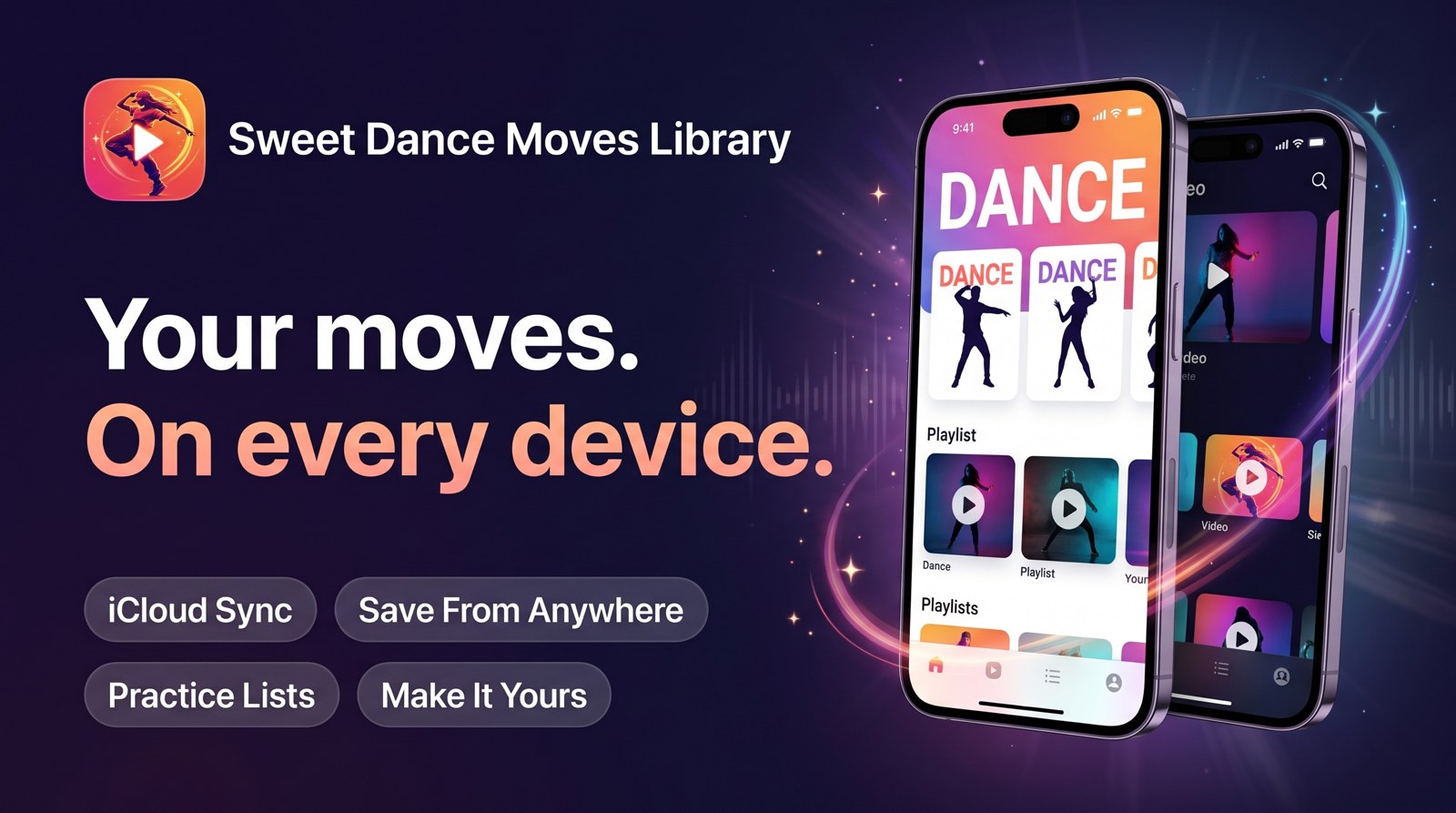
Sweet Dance Moves Library backs up and syncs your entire library across all your Apple devices automatically with iCloud Sync. You can save moves from your Camera Roll, YouTube, Instagram, TikTok or Facebook with one tap, assign styles, sources and custom tags, and search your library in seconds. Build practice lists, study footwork with slow-motion playback, share moves with your partner or instructor, and make it yours with an accent color and custom dance styles and sources.