
Published · By Henry Palma
Log Gig Income, Expenses and Miles Hands-Free with Siri and Shortcuts
Set up Siri and Shortcuts while you're parked so you can log payouts, expenses and miles hands-free, then wrap up every shift with a quick logging routine.
Most gig drivers mean to log every payout, gas fill-up and mile. Then the shift gets busy, and the numbers pile up until Sunday night. By then, half of it is guesswork. Siri and Shortcuts can make logging faster, so it happens while the details are still fresh. The key is to set things up once, safely, and then build a short habit around it.
Safety first
Your phone should never pull your attention off the road. Before anything else:
- Set up shortcuts only while parked. Building and testing a shortcut takes taps and reading. Do it at home or in a parking spot with the car in park.
- Don't handle your phone while driving. If you use your voice, do it the same way you'd use any hands-free feature, and only when it's safe.
- Log between trips, not during them. The best time is when you're stopped: waiting for a ping, parked at a restaurant, or done for the day.
- Follow local laws. Rules on phone use in the car vary by state and city. Know yours.
- Skip it if in doubt. A missed entry can be added later. Nothing in your log is worth a risky moment.
Why voice logging helps
Typing a payout into an app takes a minute. That minute is easy to skip, so entries get skipped too. Voice logging cuts the friction. When an entry takes a few seconds, you're far more likely to do it right away.
Fresh entries are also more accurate. You remember the exact payout, the gas price and which trips were business. A week later, you're estimating.
Set up your shortcuts (while parked)
On iPhone, the Shortcuts app lets you build simple actions you can trigger with Siri. Apps that support Shortcuts show their available actions inside it. Here's the general process:
- Open the Shortcuts app with the car parked.
- Create a new shortcut and search for the app you want to use.
- Pick the action, such as logging income, an expense or miles.
- Give it a short, clear name. Siri uses the shortcut's name, so choose something easy to say and hard to mix up.
- Test it once while still parked to make sure it saves what you expect.
Start with just one or two shortcuts. The ones most drivers use often are:
- Logging a payout
- Logging a gas fill-up or other expense
- Logging miles
You can add more later once the first ones feel natural.
A quick end-of-shift routine
Voice logging is great for small entries during the day. A short routine at the end of the shift catches anything you missed. Do it parked, with the engine off.
- Check each platform's earnings. Compare what each app says you earned with what you logged. Add any missing payouts.
- Log your odometer. Write down the ending reading so your mileage log stays clean.
- Mark trips as business or personal. The drive to your first pickup and the errands on the way home are easy to mix up.
- Add expenses and receipts. Gas, car washes, parking and tolls. Snap a photo of each receipt while it's still in your cup holder.
- Glance at your week. A quick look at weekly totals tells you if you're on track.
This takes about as long as finding a parking spot. It saves hours of digging later.
Make it a habit
- Tie it to something you already do. For example, log right after you park at home, before you go inside.
- Keep the list short. Five steps, every shift. Same order every time.
- Don't chase perfection. If you miss a day, fill in what you can and move on.
A note on taxes
Clean records make tax season much easier. Any quarterly tax estimate is only as good as the income and expenses behind it. Tax figures in any app are estimates to help you plan, not tax advice. Check with a tax professional about your own situation.
How Gig Driver helps
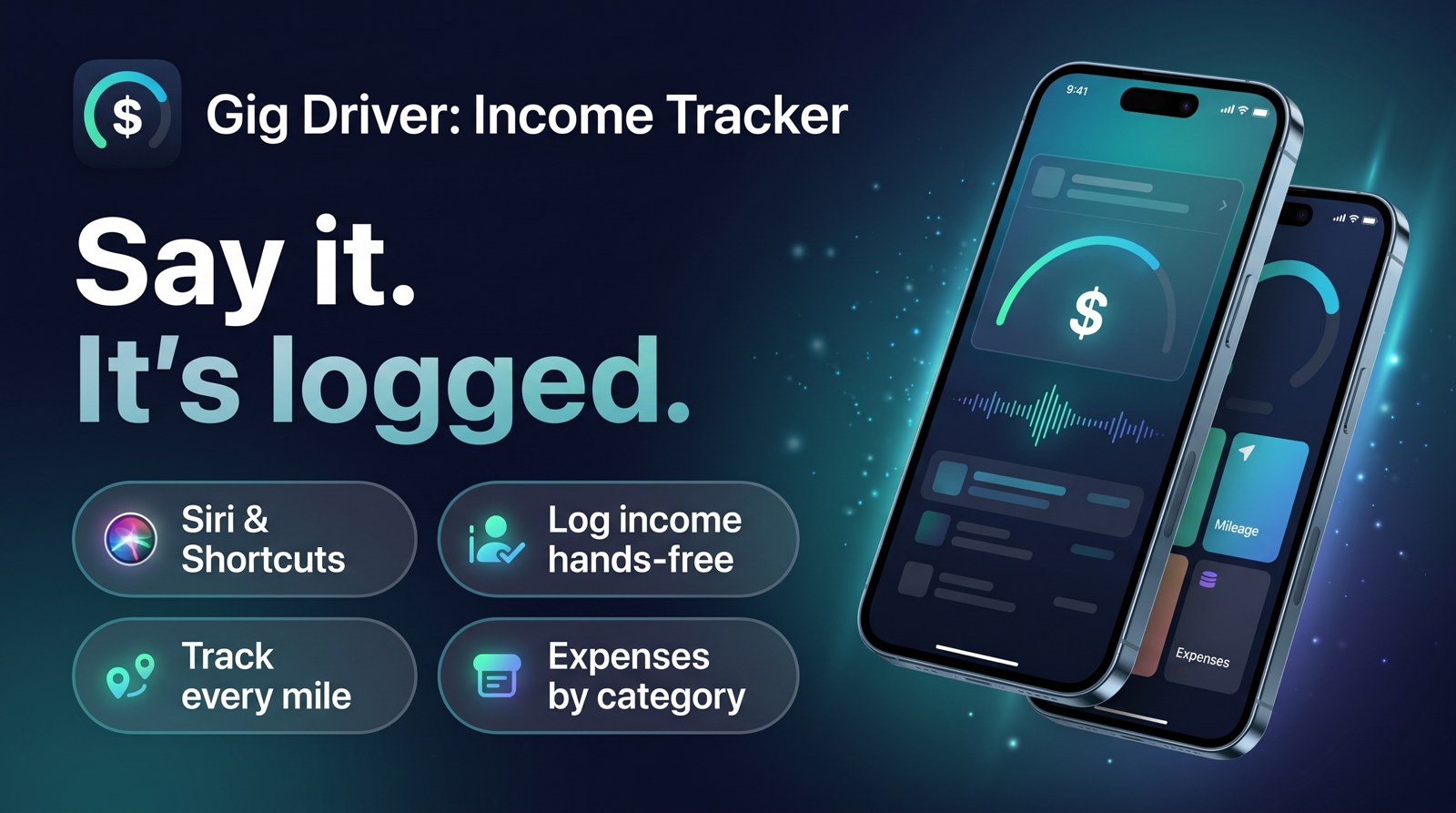
Gig Driver: Income Tracker supports Siri and Shortcuts to log income, expenses and miles hands-free. You can log payouts by platform and see earnings by week, month and year, or import income from a payout screenshot instead of typing it. Log expenses by category, set up recurring costs and snap receipt photos. Track trips and odometer readings, and mark each trip as business or personal. The quarterly tax estimate uses your real income and expenses, and your records sync to your private iCloud with no account needed.