
Published · By Henry Palma
How to Calculate Your Real Hourly Earnings as a Gig Driver
Your real gig pay is profit after gas, maintenance, and other costs divided by every hour online. Here's how to track income, expenses, and time to find it.
Your real hourly pay as a gig driver is what you keep after car costs, divided by every hour you were working, not just the hours with a passenger or an order. To find it, track three things for the same period: total payouts from every app, your driving expenses, and your total time online, including waiting and driving back.
Why the number in the app isn't your hourly pay
Rideshare and delivery apps show what they paid you for a trip or a shift. That figure leaves out two things that decide what the work is actually worth:
- Costs: gas or charging, maintenance, tires, insurance, phone and data, car washes, and the wear each mile puts on the car.
- Unpaid time: waiting for a ping, driving to a pickup, and heading home or back to a busy area after a drop-off.
A payout that looks good per trip can shrink once both are counted. The only way to know is to measure it.
The three numbers you need
Pick a period, such as one week, and collect:
- Gross earnings: every payout from every app you drove for, including tips and bonuses.
- Expenses: what you spent to do the work in that period.
- Hours worked: from the moment you went online to the moment you went offline, across all apps.
Keep all three for the same dates. Mixing one week of income with a different week of expenses gives you a number that means nothing.
Step 1: Add up income from every app
If you drive for more than one platform, pull each app's weekly earnings summary and add them together. Write them down by platform so you can compare them later. Count tips and bonuses, since they are part of what the work paid.
Step 2: Subtract your expenses
Subtract what you spent on gas or charging, maintenance and repairs, car washes, tolls and parking, and your phone plan if you use it for work.
Mileage matters here too. Even if you don't buy gas every day, every mile adds wear that you pay for later in tires, brakes, and oil changes. Logging your miles each shift lets you account for that. For tax purposes, the IRS lets you use either the standard mileage rate or your actual car expenses, and IRS Publication 463 explains how each method works. For your own hourly math, the goal is simpler: count what driving really costs you.
What's left after expenses is your profit for the period.
Step 3: Count every hour you were working
Use your total time online, not just "active" or "engaged" time. Waiting in a parking lot for the next order is still time you spent working. If you were online in two apps at once, count those hours once.
Step 4: Do the math
Divide your profit by your total hours:
Real hourly earnings = (gross earnings − expenses) ÷ total hours online
You can also divide profit by miles driven to get your profit per mile. That number helps you judge whether a long trip to a quiet area is worth taking.
Don't forget taxes
Gig drivers are usually treated as self-employed, which typically means no tax is withheld from payouts. Some drivers set aside part of their profit each week so the tax bill isn't a surprise. How much depends on your situation, so check the IRS Self-Employed Individuals Tax Center or ask a tax professional.
Use the number to make better decisions
Once you calculate your real hourly earnings for a few weeks, you can compare:
- Days and times: which shifts pay best once waiting time is included.
- Platforms: which app pays the most after costs, not just the most per trip.
- Areas: whether a busy zone that requires a long drive is worth it.
Recalculate when gas prices change, after a big repair, or when an app changes its pay structure.
Keeping the numbers in one place
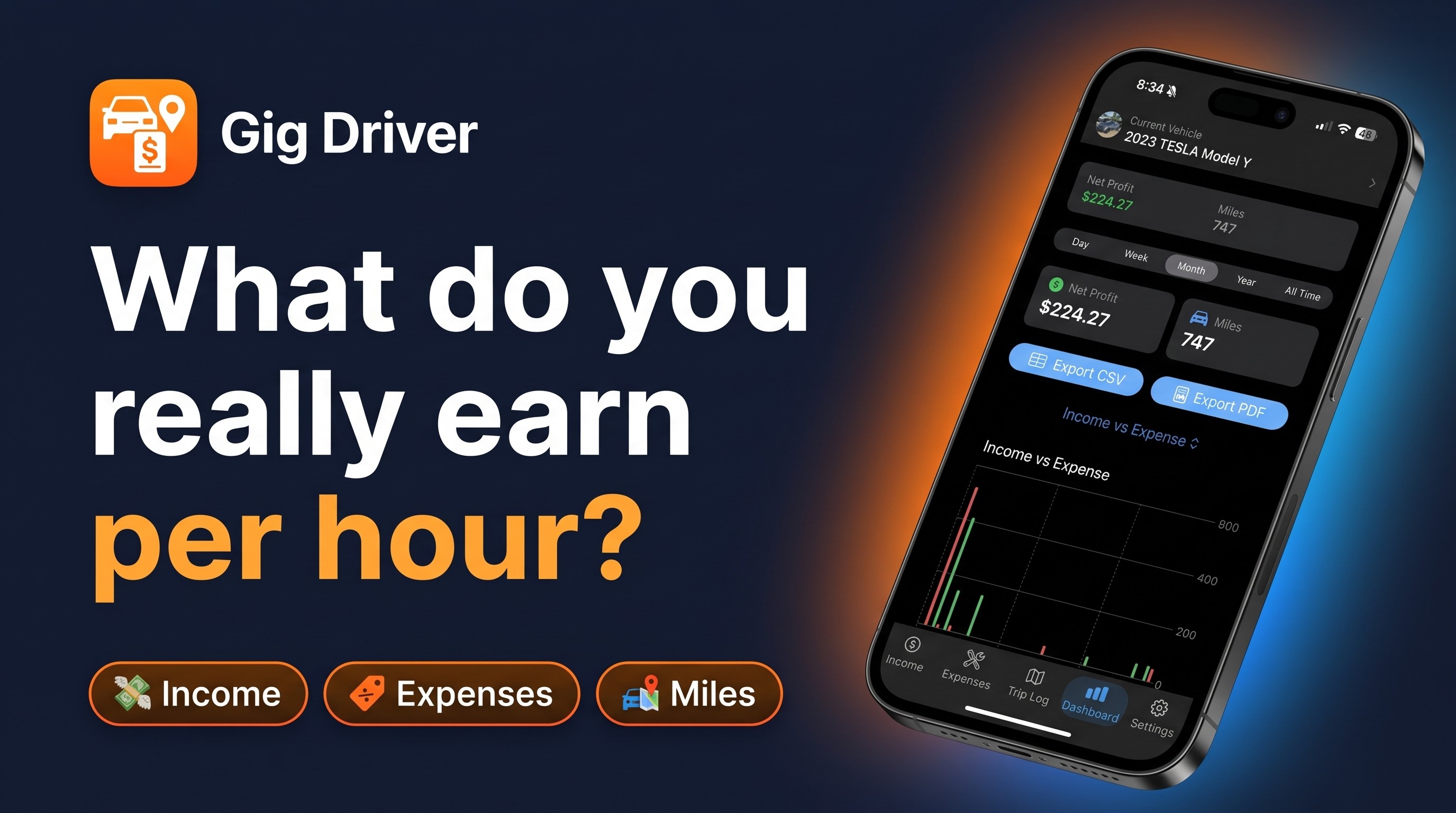
A spreadsheet works if you update it after every shift. If you'd rather log as you go, Gig Driver: Income Tracker records income from multiple platforms, sorts expenses into categories, and logs miles in its Trip Log. Import Screenshot can fill in the platform, amount, and miles from an Uber earnings screenshot, and Scan Receipt pulls the amount and date from a receipt and keeps the receipt attached. The Dashboard shows your net profit and miles for the day, week, month, or year, which gives you the first two numbers for the formula above.
Add your hours online, and you have your real hourly pay.